Saying goodbye to the oldest app on my phone

A new journaling routine for 2026

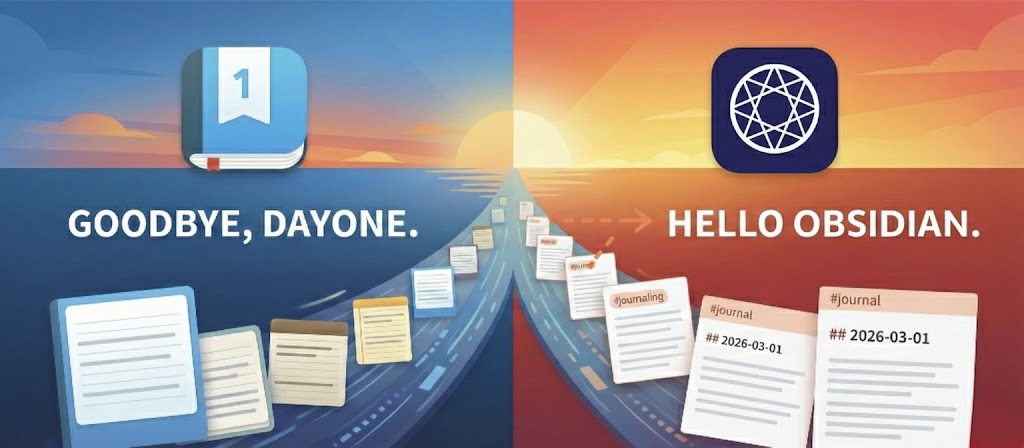
After over 14 years of using DayOne for journaling, I made the decision to switch my journaling routine to Obsidian. This was not a decision I made lightly; DayOne was the longest running third-party app on my phone. But it was time, and this change has reinvigorated my daily journaling routine.
I started using DayOne in 2011, not long after it was released and it has been my digital journal ever since. I am not very consistent with journaling but have done a decent job of keeping streaks going, particularly during times that were difficult or when my daughter was a baby and toddler. At least a few times every month I make an entry, but it’s often more. The result is more than 2,000 entries spread out over 14 years.
Why make the move?
I made the decision to move my journaling to Obsidian for a few key reasons.
- File portability is very important to me, so I try to do as much in plain Markdown as I possibly can. (This person describes the issues one can run into when trying to export DayOne entries into Markdown files.)
- DayOne was starting to feel cluttered.
- Having a separate app for journaling created friction, and left me unable to link to other things not journaling related.
- One less app means one less subscription.
- DayOne was acquired by another company about a year ago. I grew to love the app when it was a small team of developers managing it, so I was not thrilled about this new direction and had concerns about privacy and potential lock out (neither of which are a concern with Obsidian because of how it saves files locally).
- I’ve had a few experiences recently of DayOne corrupting entries and photos or other media getting lost. This mostly appears to affect entries made using the share sheet functionality and I thankfully didn’t make too many entries that way, but it was still disappointing.
What did I lose in this switch?
Having used DayOne for so long, I carefully considered what I’d be losing by switching from DayOne to Obsidian, and whether those features could at all be replicated in Obsidian. It turns out, many of them can be replicated with plugins! And most importantly, I gained the permanence of my files, stored locally, and always accessible.
Making the Switch
Step 1: I started by doing some cleaning up in DayOne, mostly deleting entries that were blank or irrelevant. I also deleted an old journal that was Instagram imports (from when DayOne used to sync with Instagram but then suddenly stopped). I put everything that remained into a single journal.
Step 2: The biggest challenge in this endeavor was modifying my exported DayOne JSON file so that 1) entries on the same date were merged into a single entry with timestamps, and 2) the title of each entry was changed to the date (in YYYY-MM-DD format). I wanted to do this so that my entries imported into Obsidian were easily sortable even if the creation date got messed up. I asked Gemini to create a Python script and tell me how to run it. It took a few tries to generate a script that did everything I wanted but this is the Python script that ultimately worked:
import json
import datetime
from collections import defaultdict

# --- CONFIGURATION ---
INPUT_FILE = 'Journal.json'
OUTPUT_FILE = 'Merged_Journal_All_Media.json'

def parse_iso_date(iso_string):
    """Parses DayOne ISO timestamp into a datetime object."""
    try:
        clean_iso = iso_string.replace('Z', '+00:00')
        return datetime.datetime.fromisoformat(clean_iso)
    except ValueError:
        return datetime.datetime.now()

def get_date_key(iso_string):
    """Extracts YYYY-MM-DD string."""
    return iso_string.split('T')[0]

def format_time_display(dt_object):
    """Formats datetime object to 12-hour time (e.g., 02:30 PM)."""
    return dt_object.strftime("%I:%M %p")

def main():
    try:
        with open(INPUT_FILE, 'r', encoding='utf-8') as f:
            data = json.load(f)
    except FileNotFoundError:
        print(f"❌ Error: Could not find '{INPUT_FILE}'.")
        return

    entries = data.get('entries', [])
    print(f"📂 Loaded {len(entries)} entries. Processing...")

    grouped_entries = defaultdict(list)
    for entry in entries:
        date_key = get_date_key(entry['creationDate'])
        grouped_entries[date_key].append(entry)

    new_entries = []

    # List of attachment keys Day One might use
    attachment_keys = ['photos', 'audios', 'pdfs', 'videos']

    for date_key, daily_batch in sorted(grouped_entries.items()):
        # Sort chronologically
        daily_batch.sort(key=lambda x: x['creationDate'])

        first_entry = daily_batch[0]

        merged_entry = {
            'uuid': first_entry['uuid'],
            'creationDate': first_entry['creationDate'],
            'location': first_entry.get('location'),
            'weather': first_entry.get('weather'),
            'tags': set(),
            # Initialize empty lists for all possible attachment types
            'photos': [],
            'audios': [],
            'pdfs': [],
            'videos': []
        }

        text_blocks = []

        for item in daily_batch:
            # 1. Handle Text
            raw_text = item.get('text')
            if raw_text is None: raw_text = ""
            raw_text = raw_text.strip()

            # Fallback to richText if text is empty
            if not raw_text:
                raw_text = item.get('richText', '')
                if raw_text is None: raw_text = ""
                raw_text = raw_text.strip()

            if raw_text:
                dt = parse_iso_date(item['creationDate'])
                time_str = format_time_display(dt)
                block = f"**{time_str}**\n{raw_text}"
                text_blocks.append(block)

            # 2. Handle ALL Attachment Types
            for key in attachment_keys:
                if key in item and isinstance(item[key], list):
                    merged_entry[key].extend(item[key])

            # 3. Handle Tags
            if 'tags' in item:
                for tag in item['tags']:
                    merged_entry['tags'].add(tag)

        # Build final markdown
        full_body = "\n\n---\n\n".join(text_blocks)
        final_text = f"# {date_key}\n\n{full_body}"

        merged_entry['text'] = final_text
        merged_entry['tags'] = list(merged_entry['tags'])

        # Clean up empty fields (so we don't have empty "audios": [] in JSON)
        for key in attachment_keys + ['location', 'weather']:
            if not merged_entry[key]:
                del merged_entry[key]

        new_entries.append(merged_entry)

    output_data = data.copy()
    output_data['entries'] = new_entries

    with open(OUTPUT_FILE, 'w', encoding='utf-8') as f:
        json.dump(output_data, f, indent=2, ensure_ascii=False)

    print(f"✅ Success! Merged {len(entries)} entries.")
    print(f"💾 Saved as '{OUTPUT_FILE}'.")

if __name__ == "__main__":
    main()
Step 3: I exported my DayOne journal into a JSON file archive and unzipped it. I saved the above python script in the folder with my DayOne export and then ran it from the terminal.
Step 4: The python script resulted in a new JSON file. I took that new file and zipped it along with the folders for video, audio, and photos.
Step 5: I imported my new archive zip file back into DayOne in a new (separate) journal from my original. I was excited to see that all my entries had been merged appropriately and renamed with the YYYY-MM-DD format.
Step 6: I next used Bear as a middle step for this migration. I did this for a few reasons, but mainly because Bear has really good instructions for migrating from DayOne to Bear. I briefly contemplated using Bear for my journaling and even gave that a try for a couple of weeks, but ultimately decided Obsidian was a better fit.
Step 7: Once I played with Obsidian and decided it was the right choice, I exported my journal entries from Bear and imported them as Markdown to Obsidian.
Note: The biggest issue I ran into was some entries with missing media (mostly audio files). This only affected about 30 entries, so I was able to manually copy over the media from DayOne into Bear for each of those entries (from there it was no issue moving them into Obsidian). I also did some manual clean up, including properly tagging entries to make them easier to find.
Obsidian Journaling Plugins and Workflow
I use a few important shortcuts and plugins to make journaling work better in Obsidian.
- My "daily note" core plugin setting in Obsidian is set to notes in the YYYY-MM-DD format and points to a single folder called "Journal."
- Within this journal folder I have one subfolder that is for ALL attachments to my daily notes. All other notes are saved in this top level folder and can be easily sorted since they use the YYYY-MM-DD format. This ensures that if I ever want to export just my journal, it is easy to locate all my entries and their attachments.
- Notebook Navigator is a fantastic plugin that comes with a really nice calendar. I love this better than the older calendar plugin because it displays an image on each of the days where a daily note has an image. Makes for a nice visual, similar to that in DayOne.
- I utilize a few shortcuts on my iPhone.
- The first is a shortcut that I run manually each day that pulls in the weather and location information, as well as a daily quote. I paste this at the top of each day's note.
- Another shortcut is attached to my iPhone's action button and gives me a quick way to append something to the day's daily note.
- A third shortcut can be run manually to pull a link for my current location, which I can then enter into an entry if I want to remember where I was.
- For tagging, I utilize the
#journal/YYYYtagging approach to give me another way to sort my entries. I am even experimenting with Obsidian bases as a way to sort these entries.
Final Thoughts
I have employed this new journaling routine for over a month now and it has definitely worked. Using one app for multiple purposes has been much better, and I feel more confident having my journal entries within the same system where I do all my writing.